

Since iOS 26, a malfunctioning iPhone has been able to boot itself into Recovery Assistant, with no Mac or PC required. However, you could only get there if your device failed to start up and dropped into recovery on its own.
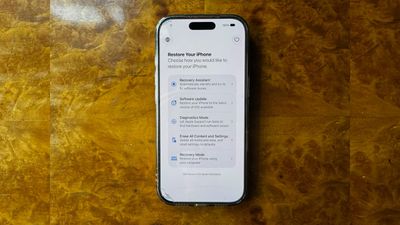
In iOS 27, currently in beta, Apple has removed that limitation, and you can now manually boot into a Mac-style recovery screen whenever you like.
The new recovery mode lets you troubleshoot, update, or erase your device without necessarily plugging it into anything. It can connect automatically to a known Wi-Fi network, and it shows your battery percentage in the corner of the screen. Here's how to access it.
How to Boot Into Recovery Mode
Accessing the recovery mode is similar to the equivalent mode on Apple silicon Macs, and it works the same way on iPads running iPadOS 27.
- Turn off your iPhone, then wait about a minute to ensure it has fully shut down.
- Press and hold the Side button. The Apple logo will appear as it normally does during startup – continue holding the button and you'll see "Continue holding for recovery...".
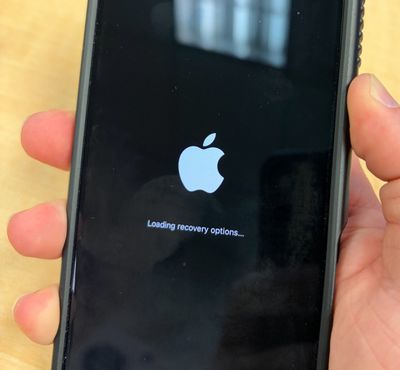
- Release the button when "Loading recovery options..." appears.
Your iPhone will then boot into the new recovery screen instead of loading iOS.
What the Recovery Options Do
The recovery screen offers five options:
- Recovery Assistant: Automatically scans for software issues and attempts to fix them without requiring further input.
- Software Update: Installs the latest version of iOS available for your device, which can help if a failed update has left your iPhone stuck in a boot loop.
- Diagnostics Mode: Runs diagnostics to check for hardware and software issues, and can recommend repairs if needed.
- Erase All Content and Settings: Completely wipes your iPhone, just like the equivalent option in the Settings app.
- Recovery Mode: Puts your iPhone into the traditional recovery mode for restoring it with a Mac or PC, without requiring the usual button-press sequence.
On newer iPhone models, there's also a sixth hidden option. While on the recovery screen, if you press and hold the Side button again, a popup menu will appear showing the option Nearby Device Recovery. This lets you restore your iPhone using another Apple device close by, similar to an existing recovery feature that debuted on iPhone 16 models.
Exiting the Recovery Screen
To leave recovery mode, tap the power button in the top-right corner of the screen and confirm that you want to restart. Alternatively, press and hold the physical Side button and choose Restart or Shut Down.
You shouldn't need the new recovery screen often, but it's worth knowing the button sequence now in case a beta goes wrong or a failed update bricks your iPhone. iOS 27 is currently in public beta, so you can download and try it out now before it's released in the fall.





















Top Rated Comments
Apple has really done well to work itself into the ARM architecture, and pave the way to a unified style of OS across all devices.
Still a rough prank/mean thing to do to someone.
But as they say, physical access is total access.