

When you're at home or work with regular access to an iPhone charger, you probably don't need to worry much about your iPhone's battery. On days when you're away from home for long stretches, you might want to make some adjustments to extend battery life.

We've rounded up 10 tips that can cut down on battery drain.
1. Turn on Adaptive Power
The best way to preserve battery life is to make sure you have Adaptive Power turned on. It's an iOS 26 feature that's available on Apple Intelligence iPhones. It uses on-device intelligence to analyze usage patterns and determine when you might need extra power.
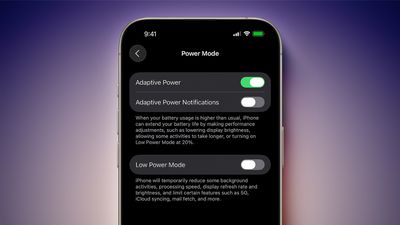
It saves battery by lowering screen brightness a bit, adjusting performance, and limiting background activity. It also turns on Low Power Mode automatically when your battery hits 20 percent.
If you have an iPhone 17, iPhone 17 Pro, iPhone 17 Pro Max, or iPhone Air, Adaptive Power is on by default, but you need to turn it on with other models. Adaptive Power can be activated on eligible iPhones in Settings & Battery & Power Mode.
2. Set Up Automations for Low Power Mode
Turning on Low Power Mode is the most obvious way to extend battery life on your iPhone, and you can automate it so it turns on at a set battery percentage.
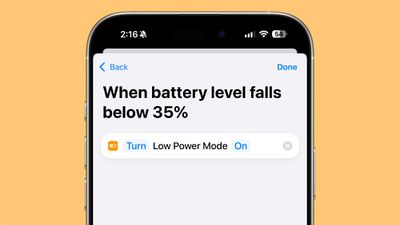
Apple will prompt you to turn on Low Power Mode when your battery is at 20 percent, but it's helpful to turn it on earlier. To set up a Low Power Mode shortcut, open up the Shortcuts app, and create a new Automation. With iOS 27, you can just type in what you want the automation to do, but in iOS 26, search for Battery Level, choose a target battery percentage, then add Low Power Mode as the action to turn on when your battery hits that level.
3. Turn Off the Always-On Display
Your iPhone's Always-On Display leaves the time, wallpaper, widgets, and Live Activities visible on the Lock Screen even when your iPhone is locked.
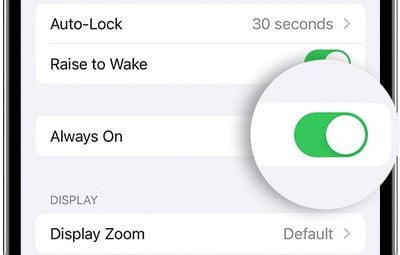
The setting preserves battery by doing things like turning off the display when a connected Apple Watch is no longer nearby (signaling that the iPhone owner is out of the room) or the iPhone is in a pocket, but Always-On Display still drains battery faster than no Always-On Display.
You can turn off the Always-On Display by following these steps:
- Open up the Settings app.
- Tap on Display & Brightness.
- Tap on Always-On Display.
- Toggle off Always-On Display.
You can also customize the Always-On Display if you don't want to turn it off entirely. You can disable wallpapers or turn off notifications.
4. Limit Frame Rate
Some iPhones have a 120Hz ProMotion refresh rate, but dropping it down to 60Hz can eke out a bit more battery life. You can adjust frame rate by using an Accessibility setting.
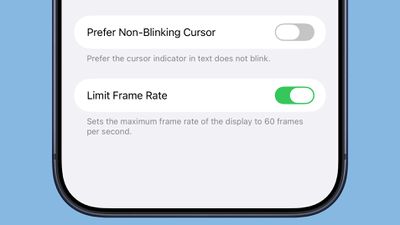
- Open up the Accessibility section of the Settings app.
- Tap on Motion.
- Toggle on Limit Frame Rate.
ProMotion is available on all iPhone 17 models, the iPhone Air, and Pro versions of earlier iPhones dating back to the iPhone 13 Pro.
5. Turn on Dark Mode
On OLED iPhone displays, activating Dark Mode preserves battery life because there's less power draw when darker-colored pixels are displayed. Activating Dark Mode when outside on a sunny day can preserve a good amount of battery life.
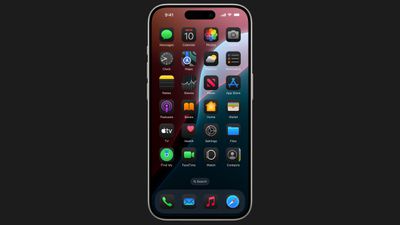
Lower levels of brightness in Light Mode use the same battery as higher levels of brightness in Dark Mode, so Dark Mode can save battery even with brightness turned up when you're in a sunny location.
When you're somewhere that has dimmer lighting and screen brightness is lower, turning on Dark Mode won't save as much battery life, but it still draws a little less power.
6. Audit Apps With Location Access
It's a good idea to regularly check your privacy and access settings to make sure apps and services aren't doing things you don't want them to be doing.
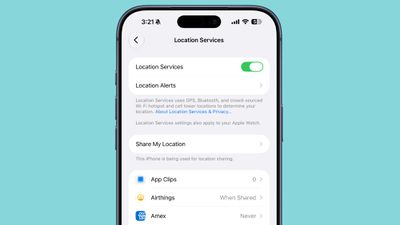
Limiting the apps that have access to your location and how often apps can access that data can save battery life.
- Open up the Settings app.
- Choose Privacy & Security.
- Tap Location Services.
- Review the list and edit settings by tapping on the name of each app in the list.
You have four possible choices for location settings for each app, though not all four choices will always be available for every app depending on what it does. You can select the following: Never, Ask Next Time Or When I Share, While Using the App, and Always.
Never will prevent an app from ever accessing your location, and unless there's a real need for an app to know where you are, such as a mapping app, setting location access to Never is the best choice.
Ask Next Time Or When I Share will prompt an app to ask you with a pop-up the next time that it wants your location, so you can temporarily approve it. With this setting, location access is off until expressly allowed via the pop-up.
While Using the App lets an app access your location when the app is open and being actively used. If you close the app or switch over to another app, location access ends.
Always allows an app to have access to your location at all times, regardless of whether it's open or closed. This will cause the most battery drain and should be limited to only the apps that you need the most.
Many apps that don't need location information will ask for your location information. A banking app may want location access to show nearby ATMs, and a social media app like Facebook may want to serve you location-based features. Clearing the cruft will ensure no apps are accessing your location without express permission, and it'll save battery life at the same time.
You can also turn off Location Services entirely, but it's not ideal because it can impact apps you rely on, like Maps.
7. Rein in Background App Refresh
Most apps use background refresh to update even when they're not open. Limiting background activity to just the apps that need it is a classic way to cut down on battery usage. It's also another one of the privacy-related options that's just good to check regularly.
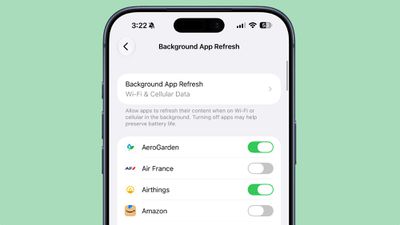
You can turn off Background App Refresh entirely or choose which apps can refresh in the background.
- Open the Settings app.
- Select General.
- Tap on Background App Refresh.
From there, you can tap on the Background App Refresh option to turn it off altogether or choose to have it activate only when connected to Wi-Fi, which doesn't drain battery as much as downloading over cellular.
8. Limit Live Activities and Notifications
Incoming notifications wake your screen, and Live Activities keep the Lock Screen updated constantly. Limiting the apps that can send you notifications and Live Activities saves battery life.
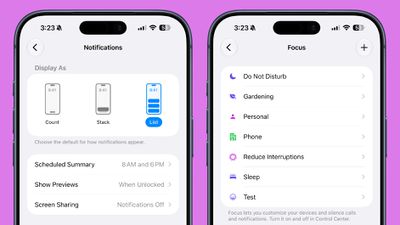
Under Settings & Notifications, go through the list and turn off notifications for apps you don't need to hear from. After that, you can further refine with Focus modes. Focus modes let you choose which apps and people can send you notifications and when.
- Open the Settings app.
- Scroll down to Focus and tap it.
- Tap on the "+" button.
- Follow the instructions to choose a Focus mode and the apps you want to use with it.
During work hours, you can make sure you're only getting work notifications, and during personal time, you can limit work notifications. You can set up Focus modes for all kinds of situations, from driving to workouts to sleep.
You'll still get all of your notifications, but silently. Turning off unwanted notifications from apps is still the best method for saving battery life, but Focus lets you keep your notifications while still cutting down on the number that you receive at any given time.
Scheduled Summary is another way to limit your notifications because you can have non-urgent alerts sent at a scheduled time.
You can toggle on Scheduled Summary for apps in the Notifications section of the Settings app, where you can choose which apps should have their notifications included in Scheduled Summary and when you want them delivered.
9. Turn Off Keyboard Haptics
Haptic feedback on the iPhone's keyboard is satisfying to feel when you tap on the on-screen keys, but it can drain your battery.
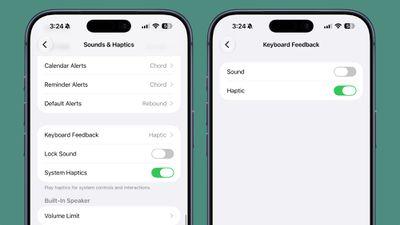
You can turn it off by going to Settings & Sounds & Haptics & Keyboard Feedback and toggling off Haptic.
10. Monitor Your Battery Usage and Adjust
In iOS 26, Apple made it easier to see which of your apps are draining the most battery.
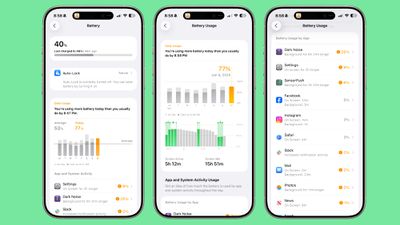
The top of the Battery interface has an overview of your current battery level and the time that you last charged. If your iPhone is charging, it also lets you know how much time you have left until the battery is full.
There is a weekly view of average battery use along with how much battery you're currently using compared to your typical average. The comparison tells you if you're using more, the same, or less battery life than you do on most days.
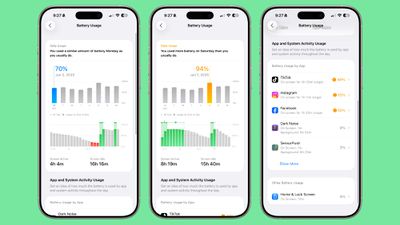
It shows which apps used more battery and by how much, which makes it easier to tell what's draining your battery. It also displays why an app used more battery, such as background app refresh or an excessive number of notifications.
Apps draining a lot of battery are shown in orange so they stand out, and that's where it's best to make adjustments.










































![Apple Pulls Keynote, Pages and Numbers From App Store [Update: Back]](https://images.macrumors.com/t/Okb7kitB_gNr6qe5Pex9nQIysD8=/112x112/article-new/2026/01/Apple-Creator-Studio-iWork-suite.jpg)
