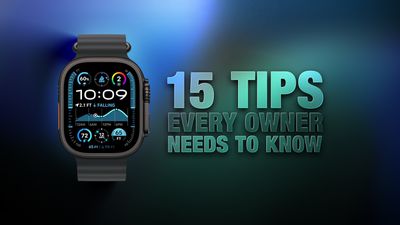
Apple Watch is now eleven generations in, and packed with useful features that are easy to miss at first glance. To help you get more out of your device, we've rounded up 15 practical tips you might not have discovered yet, including a few that long-time users often overlook.
Bounce Between Two Apps
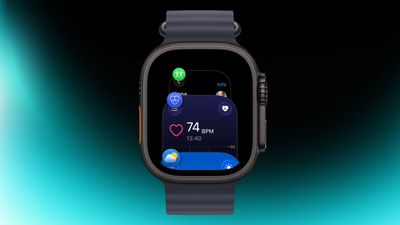
On your Apple Watch, double-press the Digital Crown to see a deck of all currently open apps, and turn it to scroll through them. From this view, you can jump back to the last app you were using. Simply tap on an app screen to switch to it, or swipe left on its card and tap the red X button to quit it.
Switch App Views
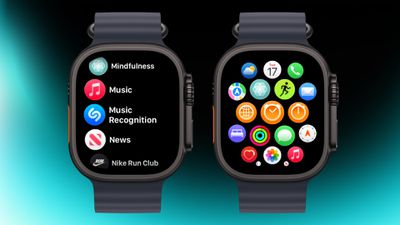
If the app grid feels messy, switch to List View. Open the Watch app on iPhone, tap App View, and choose List View. From then on, pressing the Digital Crown will show your apps in a simple, scrollable list.
Rearrange Apps
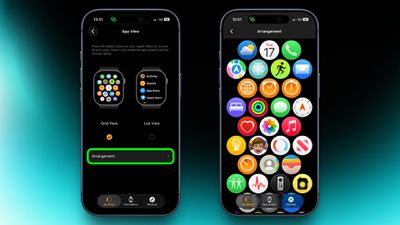
You can rearrange your apps so that the ones you use most are closer to hand. Simply press and hold on any app in the grid view, then drag it where you want. Alternatively, open the Watch app on your iPhone, go to App View ➝ Arrangement, and move things around there instead.
Ping Your iPhone
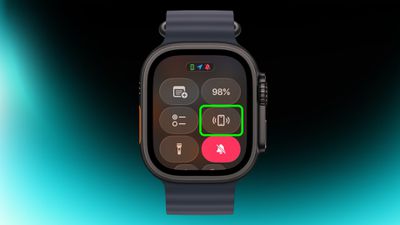
If you've misplaced your iPhone but you're sure it's nearby, open Control Center with a press of the Side button, then tap the phone icon to make it ping. Press and hold that icon and the iPhone's camera flash will blink too, which can help if it's hidden under something.
Skip the Countdown
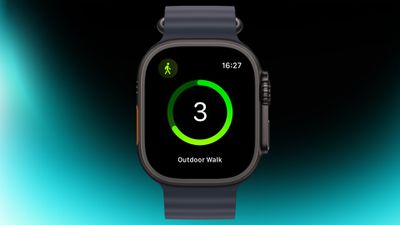
If you're eager to start a workout, the three-second countdown before it starts can be skipped. Just tap the screen when the countdown begins and your workout will start immediately. If you find yourself doing this regularly, consider turning on Precision Start in Settings ➝ Workout.
Customize Vibration Strength
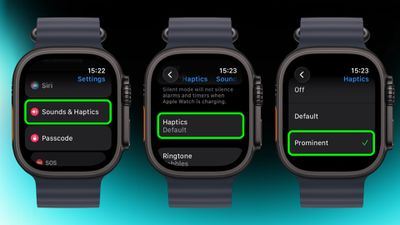
If you keep missing notifications, go to Settings ➝ Sounds & Haptics ➝ and change from Default to Prominent. This adds an extra tap pattern before alerts so they're harder to ignore.
Perform Precision Timing
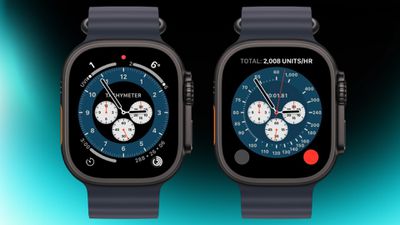
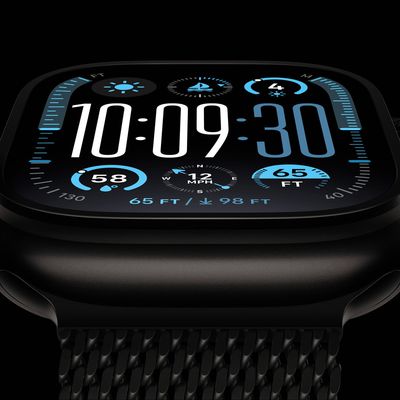
The Chronograph Pro watch face transforms into an actual chronograph. Tap the outer edge surrounding the main 12-hour dial on this watch face to record time on scales of 60, 30, 6, or 3 seconds. Alternatively, select the tachymeter timescale to measure speed based on time travel over a fixed distance.
Jump to the Top
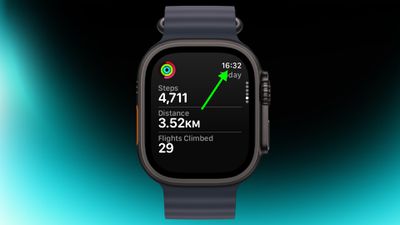
If you've scrolled way down in an app and want to jump back to the top, just tap the time in the top corner of the screen. It works in most apps and saves a lot of scrolling.
Remove Apps
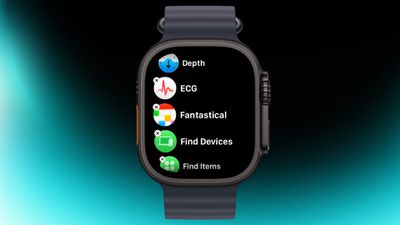
Clearing out apps you don't use on your Apple Watch is easy. In the List or Grid View, press and hold on the screen until the apps jiggle, then tap the small x in the corner of the app icon to delete it. This works for most system apps and all third-party apps.
Customize Control Center
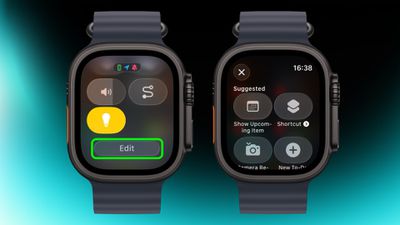
By default, Control Center (accessed via the Side button) gives you quick access to things like Wi-Fi, battery, and Do Not Disturb. But it's worth seeing what else you can add to it that you'd like quick access to. Tap the Edit button at the bottom, then tap the + icon in the top-left corner of the screen. System options such as New Note and Lights are particularly handy, and you might see some third-party options listed too, depending on your installed apps.
Speak the Time Out Loud
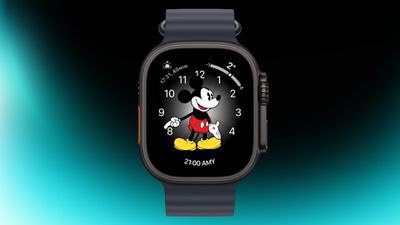
If you're using the Mickey or Minnie watch face, tap on the character and they'll speak the time out loud. Just make sure your sound is turned on. In fact, you can also have Siri read the time on any watch face by tapping and holding with two fingers on the display. Again though, sound needs to be enabled.
Customize Smart Replies
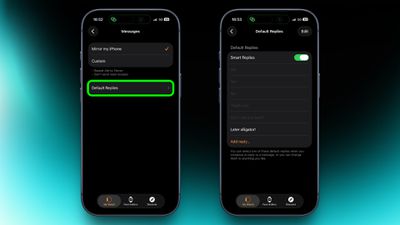
Smart Replies are handy when you want to reply with just a few words. In the Watch app on iPhone, go to Messages and tap Default Replies to customise what shows up. Then when a message comes in, simply swipe down to pick one of your preset replies.
Pause Activity Rings
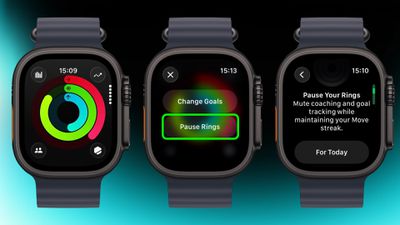
Feeling unwell but hoping to keep your streak intact? In the Activity app, select your rings to access the option to suspend them for the day, or set a pause that lasts until a chosen date up to 90 days ahead.
Create a Note
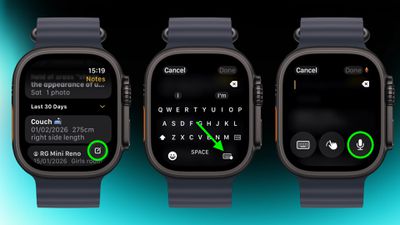
In the new Notes app in watchOS 26, you can't modify existing notes on Apple Watch, but you can create a new one by tapping the compose control in the bottom-right corner and speaking your text. Because Notes sync through iCloud, you can refine or reorganize everything later on a device with a physical or on-screen keyboard.
Mute and Dismiss Alerts
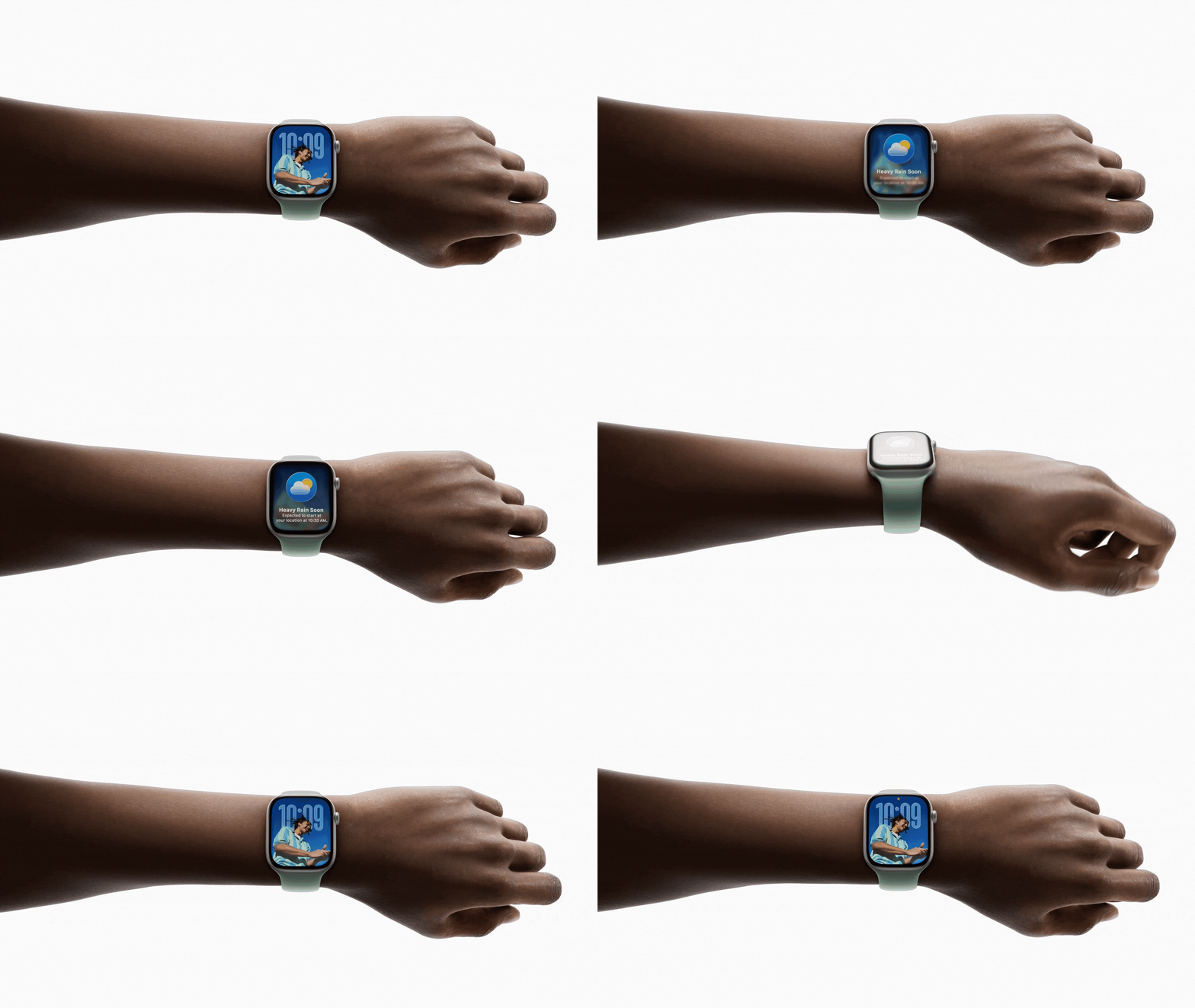
With a quick wrist flip, you can clear the current screen and go back to the watch face. The same gesture can be used to mute calls, stop timers, and dismiss notifications. The feature, which is on by default, is supported on Apple Watch SE (3rd generation), Series 9, Ultra 2, and later.
















![Apple Watch Ultra 3 Drops to Record Low $599.97 on Amazon [Updated]](https://images.macrumors.com/t/99z85mg_XjeuFDPW3me6tOe0oOw=/112x112/article-new/2026/09/apple-watch-ultra-3-new.jpeg)