Earlier this year, Apple expanded its Made for Apple Watch program to include Apple Watch stands with integrated chargers. Popular accessory maker Belkin has now worked with Apple to develop the an Apple Watch stand with an integrated magnetic charger, which also includes a built-in Lightning connector for charging an iPhone.
The new Charge Dock for Apple Watch and iPhone is the very first third-party product to incorporate a Lightning connector and a charging puck for the Apple Watch, letting both an iPhone and an Apple Watch charge through the dock without the need for user-supplied cables.
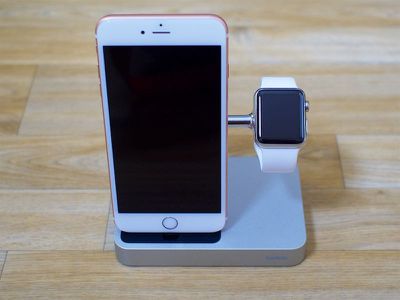
Ahead of the launch of the Charge Dock, I went hands-on with it to see how it measures up to other Apple Watch and iPhone charging solutions on the market and whether it's worth its $130 price tag.
Design
Belkin's Charge Dock consists of an aluminum platform with a built-in Lightning connector for the iPhone and a chrome arm that houses an Apple Watch charging puck. It's a simple, unobtrusive design that fits well into any decor, but it does only come in silver, so it's not going to perfectly match all iPhones and Apple Watches.
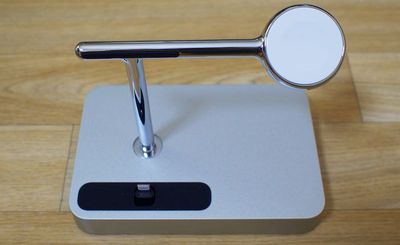
The mix of a matte aluminum base and a shiny chrome arm may not be appealing to everyone, especially with the black accents on the base where the iPhone rests and the black detailing on the back of the Apple Watch stand.
Size wise, the Charge Dock is compact so it's not going to take up too much room on a nightstand or desk. It measures in at five inches long, three inches wide, and it's less than an inch thick. In length, it's a bit smaller than the iPhone 6s and about an inch smaller than the iPhone 6s Plus.
➜ Click here to read rest of article...


 Apple has purchased Perceptio, a small startup focused on artificial intelligence, reports
  Apple today updated its



 At WWDC 2015, Adobe director of engineering David McGavran demonstrated After Effects and Illustrator on Mac integrated with